Free Β· No sign-up Β· No watermark

GIF Background Remover

Use this GIF background remover to keep every frame moving. Let AI cut out the subject, or clear a green, white or black backdrop in one click. Download a transparent GIF, APNG or WebP β€” your file never leaves your browser.

Removal mode

Try a sample

Up to 8 MB Β· 48 frames Β· Output up to 512 px. Very large decoded images are rejected.

First use downloads about 94 MB of AI model data plus runtime files. Processing speed depends on your device.

Your GIF frames stay on your device. No sign-in or credits required.

Original
GIF background removal result
Original GIF before background removal
↔
  • βœ“ No upload β€” processed on your device
  • βœ“ No watermark, no account
  • βœ“ Frame timing preserved after normalization
  • βœ“ GIF Β· APNG Β· WebP Β· color background

Remove background from GIF β€” two ways

This GIF background remover offers two ways to isolate an animated subject. Choose AI for a scene with varied colors, or select a backdrop color when the setting is flat. Both methods work frame by frame on your device. The examples show AI subject and solid color results, respectively.

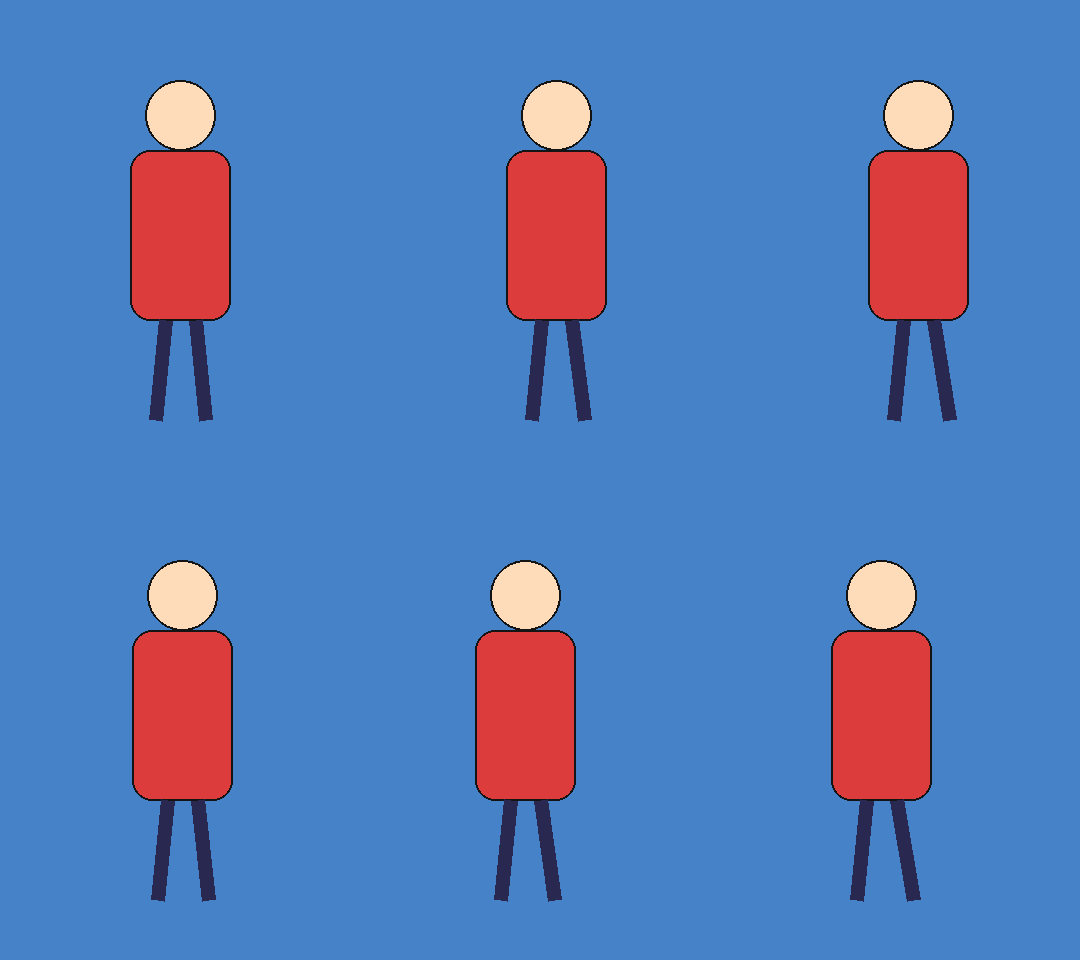
Person animation before background removal
Original
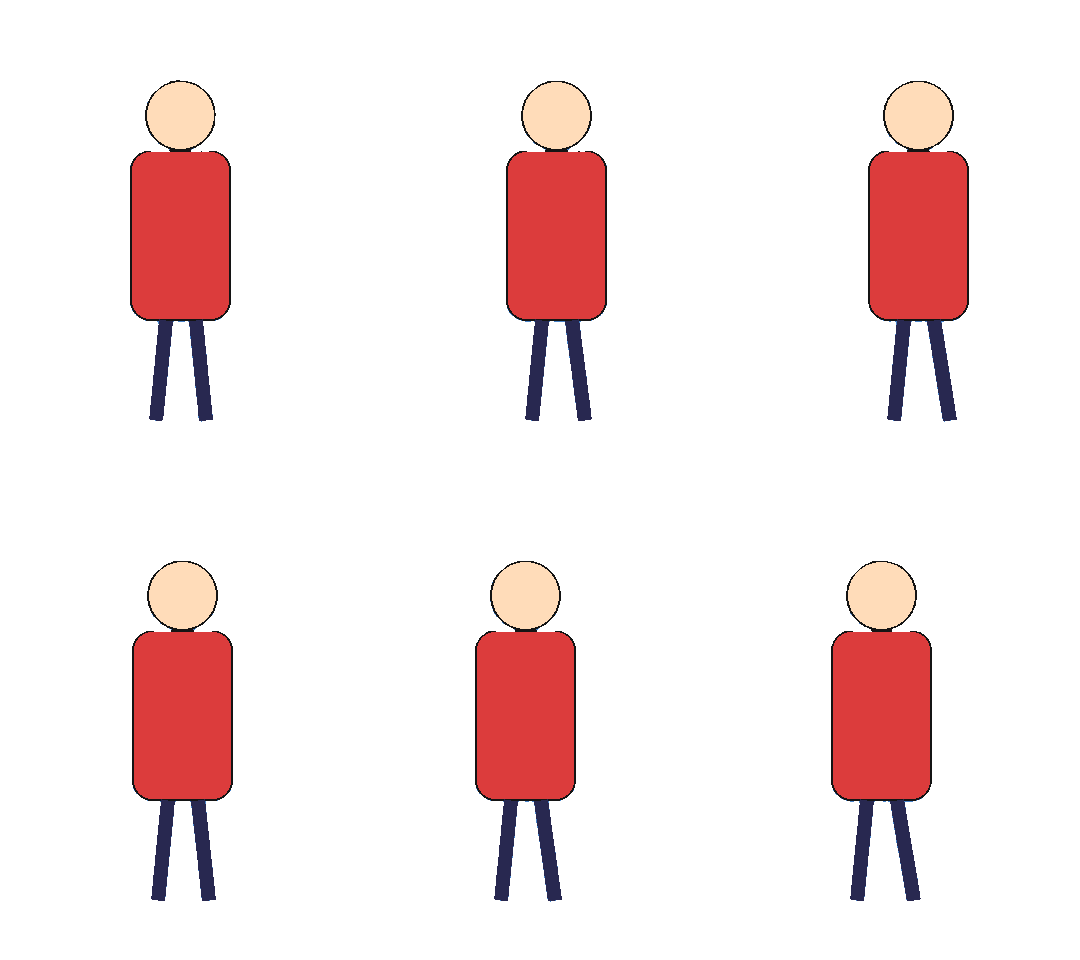
Person animation with transparent background, shown in the GIF background remover
Transparent

Cut out people, pets and objects

AI subject mode estimates the foreground in each frame. Try it when a character moves across a detailed setting or when the backdrop contains several colors. The GIF background remover keeps the animation together as you inspect the cutout. The person example shows the output of AI subject mode.

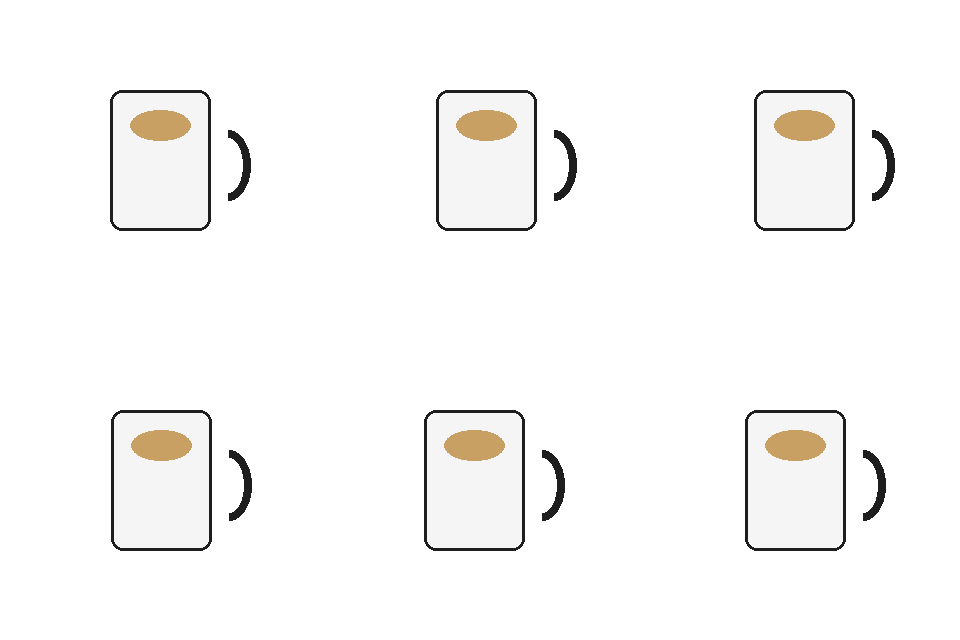
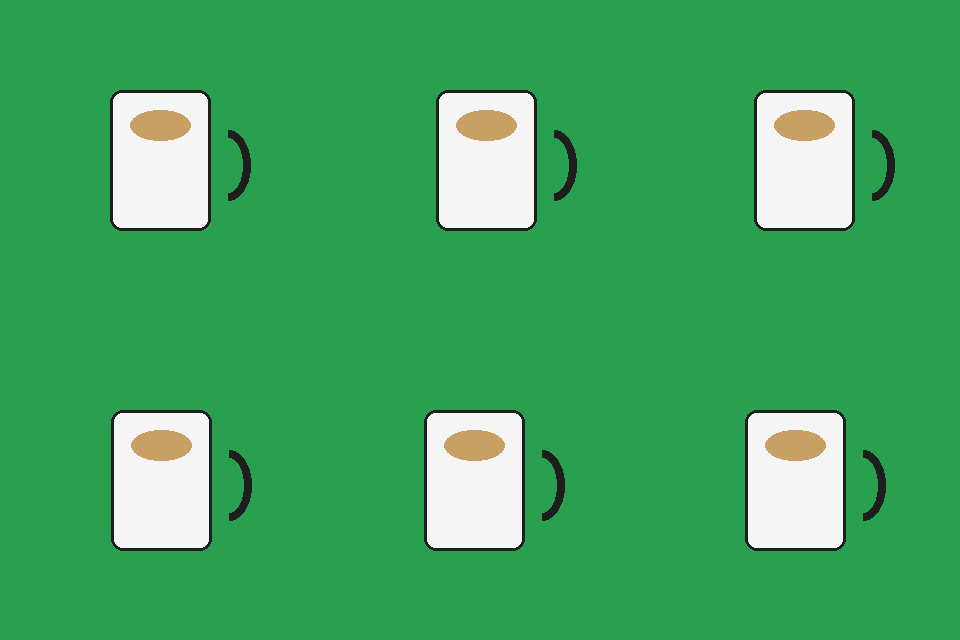
Animated mug against a green screen before removal
Original
Animated mug after green background removal
Transparent

Clear green screen, white or black

Solid color mode targets a chosen color across the animation. Use it to remove black background from GIF files, clear a green screen, or replace white with transparency. The tool suggests a color from the frame edges. You can pick another color, adjust tolerance, and keep similarly colored areas inside the subject.

How to make a GIF transparent

Turn a short animation into a reusable cutout in three steps. This transparent GIF maker runs in your browser, so your original frames stay on your device.

1

Add your GIF

Choose a GIF from your device, drop it into the upload area, or paste it. You can also try the supplied samples first. The file limit is 8 MB. If the animation has more than 48 frames, choose the offered sampling option or select another file. The decoded pixel budget also limits very large animations. The tool shows the available options before processing.

2

Pick AI or solid color

Select AI subject for automatic foreground separation, or choose Solid color for a flat backdrop. In color mode, select the background color and adjust tolerance. The edge-connected option helps protect matching colors enclosed inside your subject. Preview the first frame, then apply your settings to the animation. AI mode needs a model download on its first run. Use the live preview to compare the selected color with the first frame.

3

Check and download

Compare the original and result, then play the whole loop. Switch the preview background to find a light fringe or a missing detail. Choose GIF, APNG or WebP for transparency, or add a solid color to a GIF. Download the result and keep the original for another edit. The tool displays the file size for the selected output.

Transparent GIF, APNG or WebP?

The right export depends on the destination and the edge you need. GIF uses fully transparent or opaque pixels, while APNG and WebP can preserve partial transparency. Check animation support in the destination before sharing. The tool also offers a solid background when transparency is unnecessary. Output is resized to a longest side of at most 512 pixels. Save a separate copy for each destination.

Transparent GIF, APNG or WebP?
OutputEdge and backgroundWhen to use
Transparent GIFHard, binary transparencyWidely supported animated format
APNGSoft, partial transparencySmooth edges where APNG animation is supported
Animated WebPSoft, partial transparencySmooth edges where animated WebP is supported
GIF + color backgroundOpaque solid backgroundA fixed background for the whole loop

What you can make with a transparent GIF

A moving cutout can sit on a color or layout of your choice. These examples place real transparent sample animations over different backgrounds. They demonstrate how the same empty pixels reveal the surface behind them. Use this tool to prepare a file for your own composition.

Transparent animated character on a purple background

Stickers and emotes

Give a character or reaction a clean outline for a small animated sticker. Place the subject on a contrasting surface to check that its shape remains legible. Test the final file in the destination, because animated format support varies.

Transparent animated mug on a blue background

Product loops

Remove a flat backdrop from a small product animation and place the result beside product information. A consistent background makes a rotating or moving object easier to compare across frames. Keep handles and gaps visible during your review.

Transparent animated duck on a green background

Slides and docs

Add a moving subject to a presentation or document when the destination supports the chosen animated format. Transparency lets the slide color show through. Preview the exported presentation to make sure the motion plays as intended.

Transparent animated character on a dark website background

Websites

Place an animated cutout over a page section instead of a fixed rectangle. Choose a background that keeps the subject distinct from nearby text. Check the exported animation at its displayed size and on a smaller screen. The tool keeps the subject moving in the exported file.

Tips for cleaner edges

Small details can change from frame to frame. Inspect the moving result against both light and dark backgrounds before choosing an export. These two views use the same transparent mug sample, so the different backgrounds reveal different parts of its outline.

  1. 1.

    Start with a distinct subject

    Choose a source with a clear boundary between the subject and its backdrop. Sharp frames and consistent lighting make that boundary easier to inspect. If a subject blends into a busy scene, try another source or compare both removal modes.

  2. 2.

    Tune the color selection

    For a flat backdrop, pick the actual background color and raise tolerance gradually. A low setting may leave a fringe, while a high setting can remove similar colors from the subject. Keep edge-connected removal enabled when matching colors occur inside enclosed areas.

  3. 3.

    Watch the whole loop

    Look for leftover patches, flickering outlines and gaps between moving parts. The first frame alone cannot show changes later in the animation. Keep the original file so you can repeat the process with different settings or select a clearer source. The tool lets you compare the source and the result.

  4. 4.

    Match the export to the edge

    Try APNG or WebP for gradual transparency around fine details. GIF uses a hard transparency threshold, so a soft boundary becomes a sharper edge. A solid background GIF can suit a fixed design, but its background is no longer transparent.

Transparent mug animation viewed against a light background
Light background
Transparent mug animation viewed against a dark background
Dark background

GIF background remover FAQ

Yes. The GIF background remover is free to use and download without an account, credits or a watermark. The animation is processed locally in your browser. File and decoded pixel limits keep processing manageable on a device; other photo tools on this site have their own pricing.


Yes. A GIF can mark pixels as transparent or opaque, so a subject can appear over another background. GIF cannot retain partially transparent pixels along a soft edge. Choose APNG or animated WebP for gradual transparency when your destination supports the format and its animation.


Choose Solid color mode and use the automatically suggested edge color, or select the color manually from the image. Adjust tolerance to control which similar colors are removed. Keep the edge-connected option enabled to protect matching colors enclosed inside the subject, then apply the settings to every retained frame.


No. Your GIF frames are decoded and processed on your device rather than uploaded for background removal. The first AI run downloads model and runtime files from external servers. Solid color mode does not need those downloads. Browser caching can avoid downloading the AI model again on later visits.


GIF transparency has only transparent and opaque states, so a partially transparent edge must be converted to one or the other. This can make hair, curves and motion blur look jagged. Try APNG or animated WebP for softer edges, and check that your destination plays the chosen format.


Choose the option to keep every Nth frame, or trim the animation elsewhere before selecting it again. Sampling adds discarded frame delays to retained frames. The total duration stays the same after frame delays have been normalized; nonzero delays below 20 milliseconds are raised to 20 milliseconds, while zero or missing delays become 100 milliseconds before sampling.


You can try both modes in a compatible phone browser. Solid color mode does not require a model download. AI mode downloads about 94 MB of model data on first use, plus runtime files. Speed depends on the device; without WebGPU the tool attempts a slower CPU fallback.


No. This tool accepts GIF files rather than MP4 or other video formats. If you already have a suitable GIF, select that file and choose AI subject or Solid color. Keep your original video and animation separately when preparing files for another project.


Make your GIF transparent now

Choose a short animation and try the GIF background remover on your device. Select AI or solid color, inspect the moving cutout, and save the format that fits your project. Exports loop continuously; original finite loop counts are not retained. Nonzero frame delays below 20 ms are normalized to 20 ms; zero or missing delays become 100 ms. The AI model is cached in the browser Cache API when available, so later runs can reuse it.