AI Photo Shadow Remover

Document Shadow Remover

Use the document shadow remover to reduce uneven lighting on paper photos and scanned images with Document mode. Upload a JPG or PNG, then compare the text before downloading. Sign-in and credits are required to process your image.

Upload Image to Remove Shadows

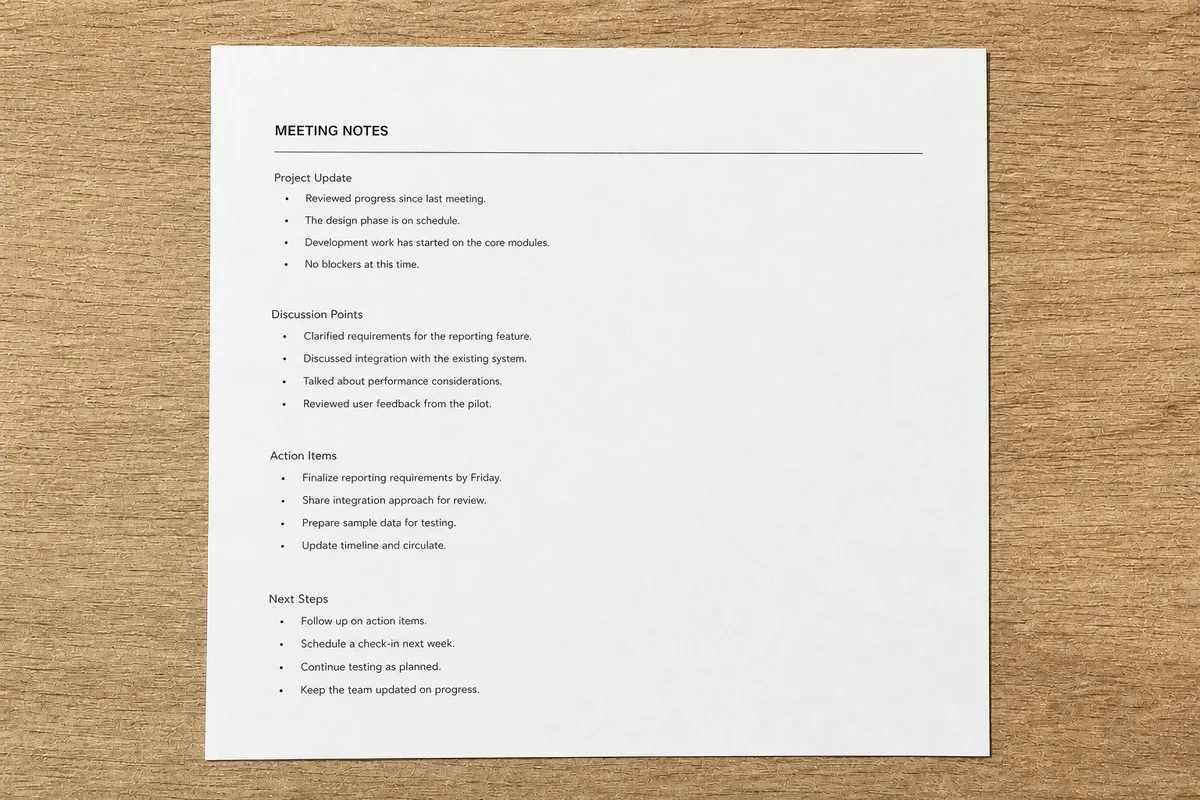
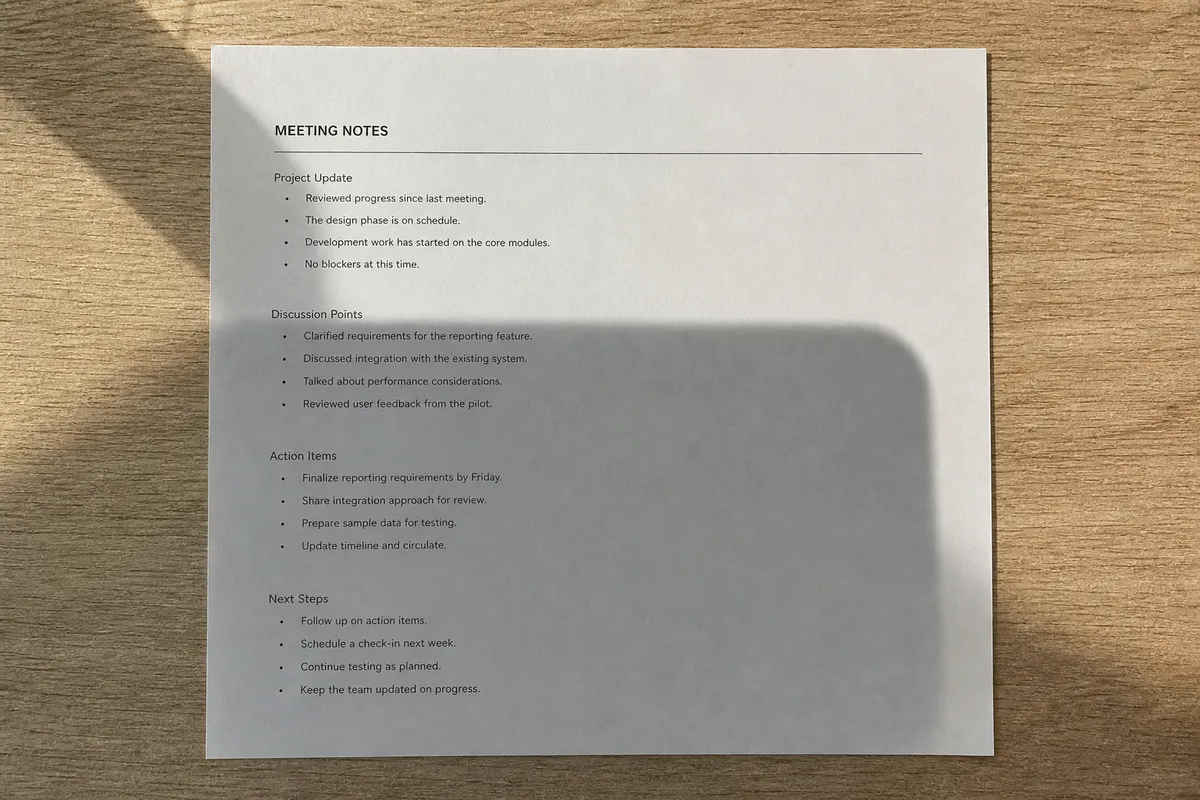
Illustration of a document after shadow reduction
Document photograph with uneven page lighting
Original
Processed

AI-generated illustrations, not measured tool results. Check all text after processing.

Upload your photo

No image handy? Try a sample:

Costs 5 credits · No card needed to start

JPG / PNG · 10 MB
AI-generated illustrations, not measured tool results. Check all text after processing.

Remove shadows from document photos, not the writing

A document shadow remover reduces uneven illumination across a photographed page. A phone above a worksheet, a hand beside a receipt, or a lamp behind your shoulder can leave a dark patch even when the writing is in focus. This page starts in Document mode, which asks the AI to relight the paper while preserving characters, lines, stamps and diagrams. That instruction is a goal, not a guarantee: generative editing can change small details. Keep the original and compare the result before using it.

01

Paper lighting

Before using the document shadow remover, look at the empty margins first. A lighting shadow usually changes gradually or follows the outline of the phone, hand or book edge. Printed gray boxes, highlighter marks and colored paper are part of the document. They should not be mistaken for unwanted shading or removed just to make the page white.
02

Images of scanned pages

Use this document shadow remover for a single page saved as an image. It does not read a PDF container, extract text or create a searchable text layer. If your source is a PDF, export the relevant page as a clear JPG or PNG in your PDF application before uploading it.

How to remove a shadow from a document

Start with the original camera file or a clear scan instead of a compressed messaging-app preview. Fit one page into the image and check that the smallest text is readable before processing. A document shadow remover has more useful information when both the shaded and the well-lit parts still contain visible strokes. Choose your model and resolution in the tool; the displayed credit cost depends on those settings.

1

Upload one page

Choose a JPG or PNG up to 10 MB. Keep the whole page visible, including margins and the ends of table rows. If you still have the paper, a sharper photo under diffuse light is often a better starting point than increasing the output resolution of a blurry source.

2

Process in Document mode

Document mode is already selected on this page. Sign in, check the credit cost and run the correction once. The tool aims to even out the lighting without retyping the page. Repeatedly processing an edited result can introduce more changes, so return to the original when trying another setting.

3

Compare and download

Use the before-and-after view, then inspect the downloaded image at full size. Check dates, totals, names, punctuation and the faintest marks against the original. Save the corrected file separately. A brighter page is only useful if the information you need is still accurate and complete.

Document photos and scanned tables: shadow examples

AI-generated illustrations, not measured tool results. Check all text after processing. Different paper surfaces need different checks. White worksheets, thermal receipts and bound books can all show shadows, but their important details are not interchangeable. Use the document shadow remover to improve the view of an existing page, rather than to reconstruct information that the camera never captured. The example is an illustration of the task; it does not establish accuracy for your own document.

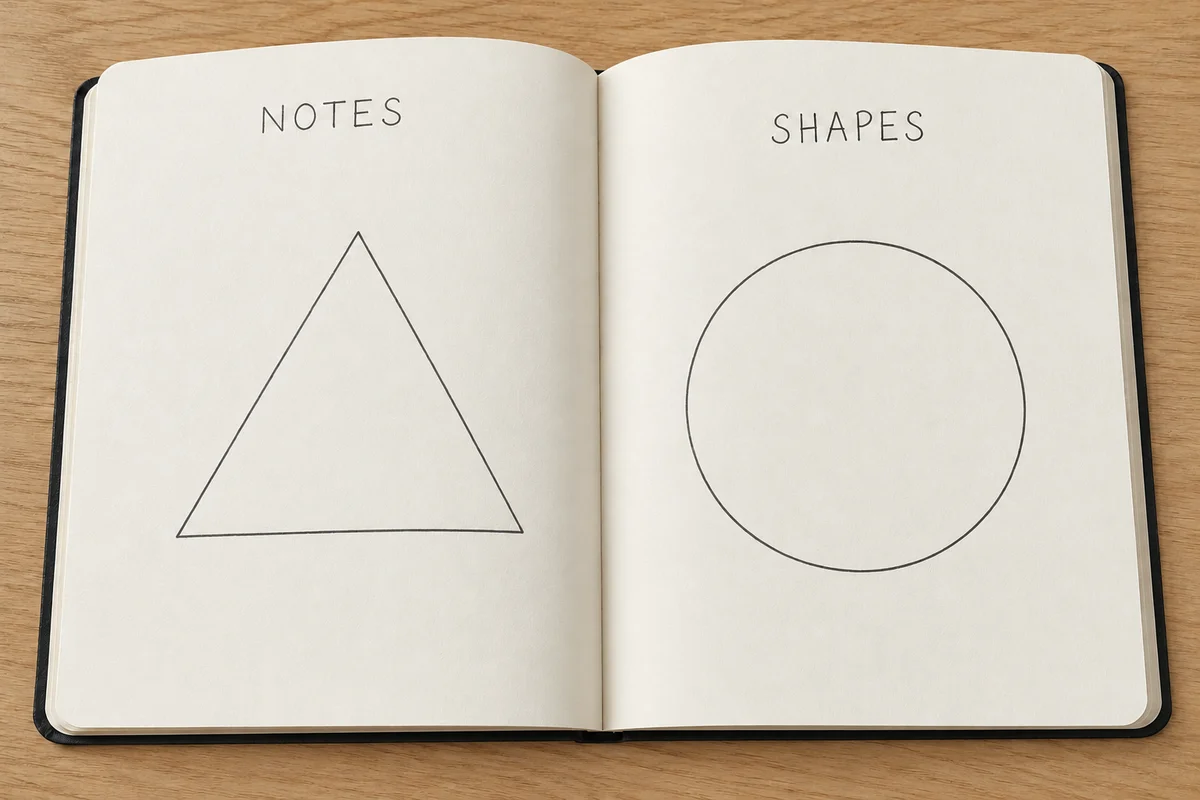
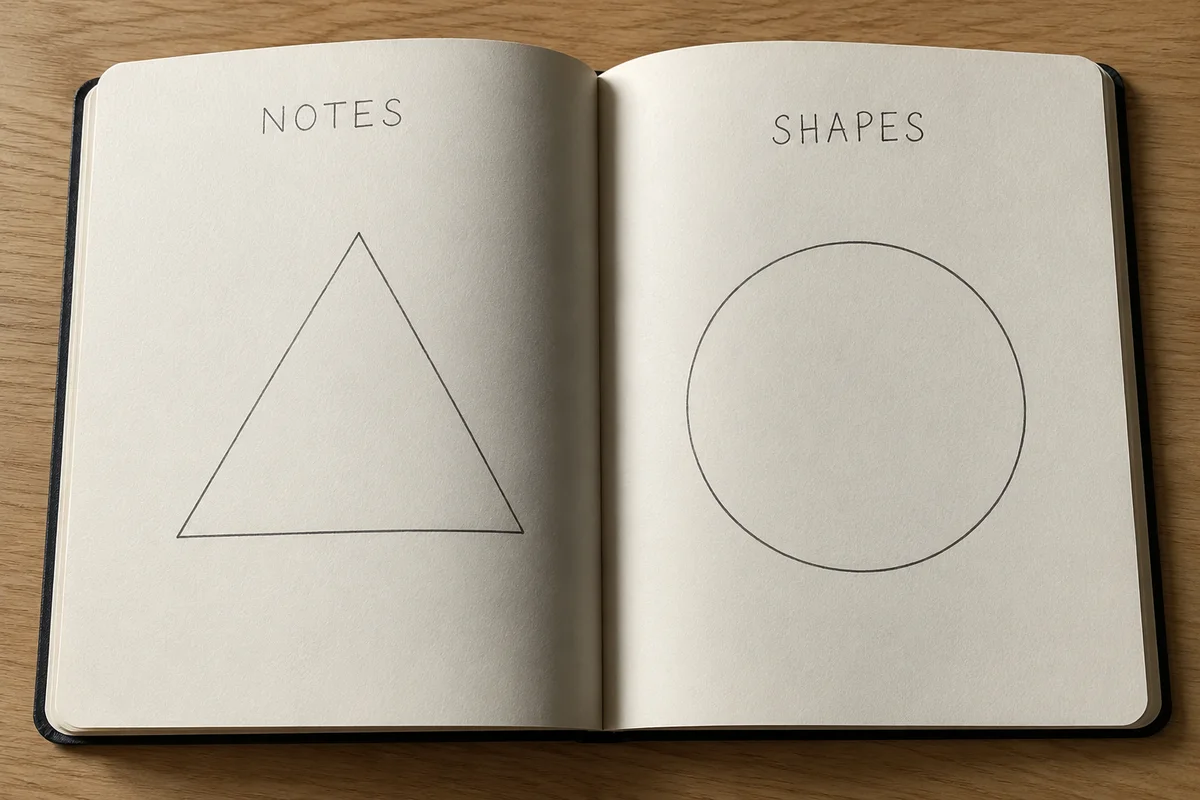
Photographed notes — Processed
Photographed notes — Original
Original
Processed

Photographed notes

Check thin pencil strokes, mathematical signs, superscripts and ruled lines. A minus sign or decimal point may be more important than an entire paragraph. If light pencil disappears as the background brightens, keep the original or take another photograph rather than accepting a cleaner-looking but incomplete page.

Scanned tables and forms — Processed
Scanned tables and forms — Original
Original
Processed

Scanned tables and forms

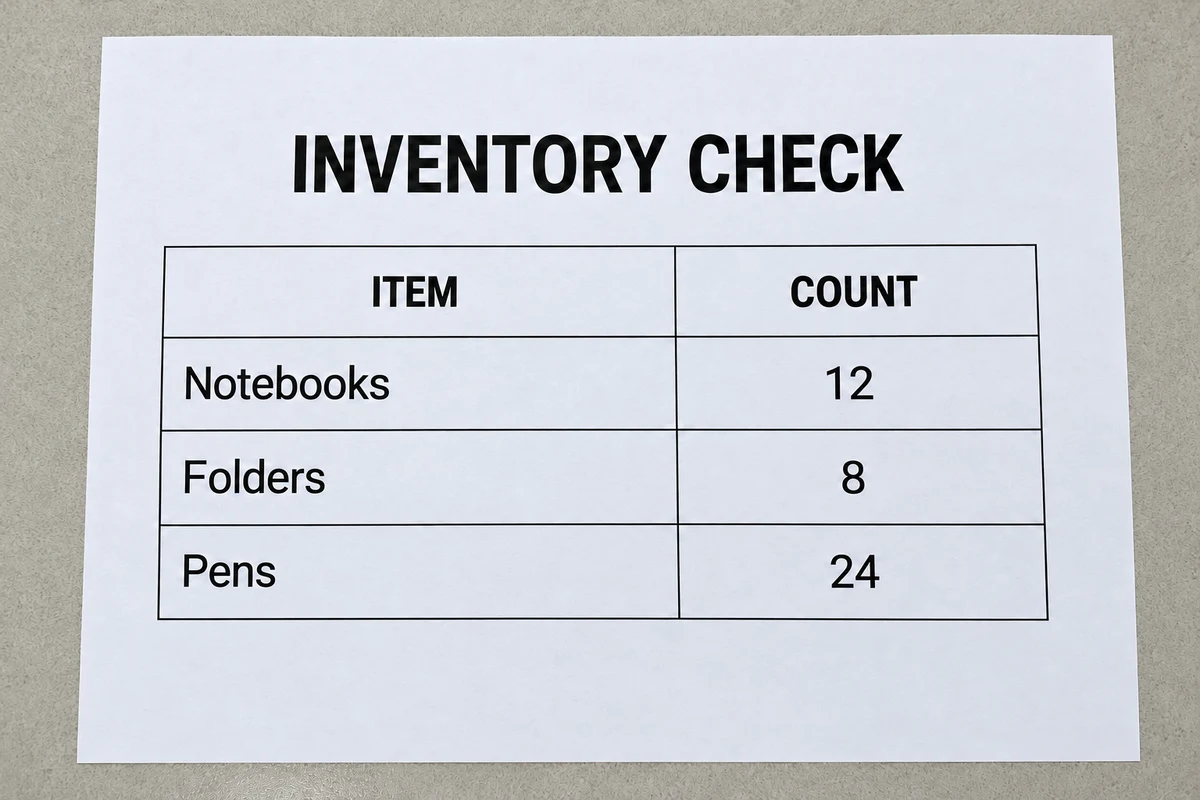
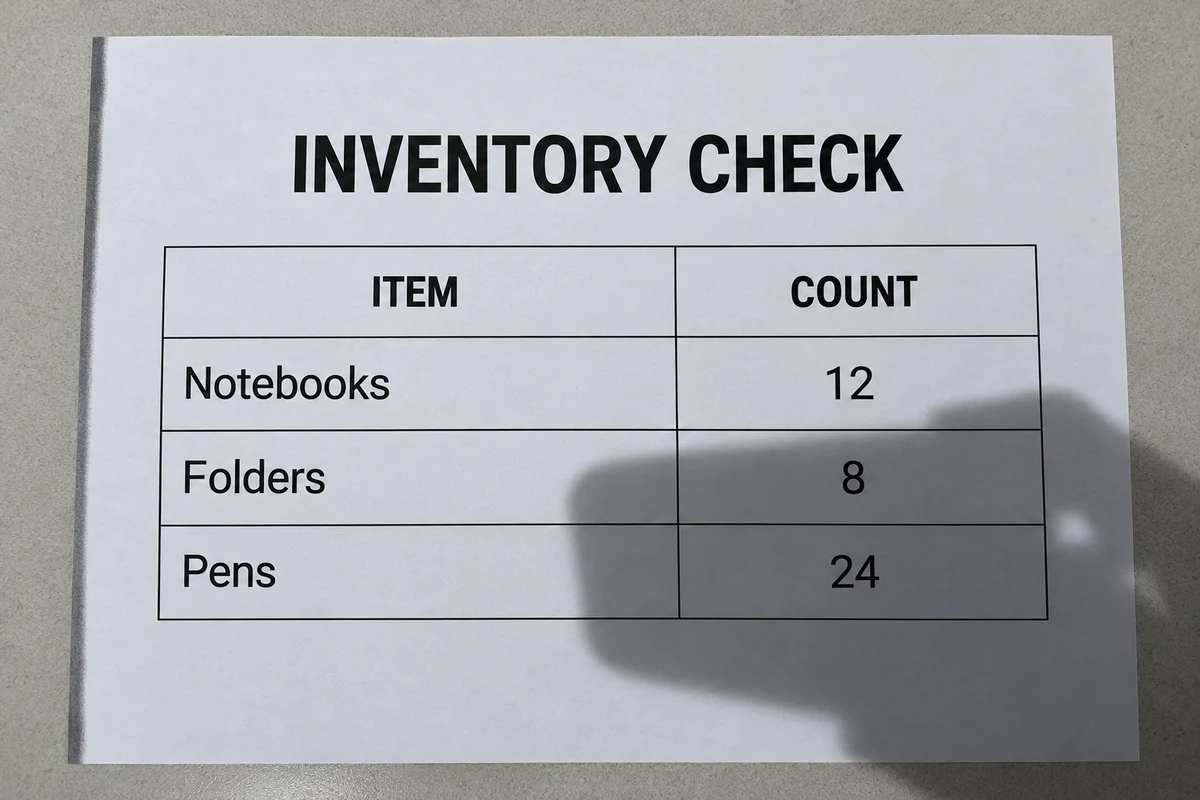
Compare table borders and every digit after reducing the shadow. The sample contains 12 notebooks, 8 folders and 24 pens: a brighter background is not useful if any of those values changes. This is an AI-generated illustration, not proof of text-preservation accuracy.

Book pages and scans — Processed
Book pages and scans — Original
Original
Processed

Book pages and scans

A dark strip near a binding may include both a shadow and physically hidden content. This tool does not offer page flattening or perspective controls. If letters disappear into the fold, open the book more evenly and photograph the page again. Removing the visible shade cannot reveal obscured characters.

Check text and tables after AI cleanup

Do not judge the document shadow remover only by how white the background becomes. The useful result is a page whose information you can still verify. Compare shaded and unshaded regions, because an AI edit can affect both. For material that requires an exact original, keep or submit the original according to the recipient’s requirements instead of assuming a corrected image is an equivalent record.

01

Inspect small details

Compare the smallest print, table intersections, checkboxes, signature edges and colored annotations. Look for merged characters, broken strokes, shifted rows or missing dots. Output resolution describes image dimensions; a larger image does not prove that the underlying text is more accurate.

02

Use OCR separately

This document shadow remover returns an image, not editable text. After using the document shadow remover, you can run your preferred OCR tool on the reviewed result afterward, but compare recognized text with the original page too. A visually improved background does not guarantee better recognition, particularly for handwriting, unusual fonts or damaged print.

File limits and when to rescan

The document shadow remover works online on image files, one image at a time. JPG and PNG are the recommended input formats, with a 10 MB upload limit. Processing uses account credits, and the selected model and output settings determine the displayed cost. Direct PDF uploads, multipage PDF exports, batch scanning and OCR are not features of this page. These boundaries matter when choosing between photo cleanup and a dedicated scanning workflow.

01

Retake very dark or blurred pages

If the shaded area is almost black, letters are out of focus, or glare has turned part of the paper white, the source may not contain enough detail. Move the light to the side, avoid placing your phone between the light and paper, and take a new image with the page flat.

02

Choose a scan for exact records

When every character matters, a fresh scan is often more dependable than generative repair. Keep the source file alongside any edited copy. For a long PDF or a document that needs searchable text, use a dedicated PDF or OCR workflow rather than uploading page after page here.

FAQ

No. This document shadow remover accepts images, not PDF files. Export the page as a JPG or PNG in a PDF application first. The result is an image; this page does not assemble pages back into a PDF or retain a PDF text layer.


No exact preservation guarantee is possible. Document mode instructs the AI to preserve text, strokes and layout, but small details may change. Compare the result with the original, especially numbers and signatures. If an exact record is required, use the original or make a new scan.


Processing your own image requires sign-in and available credits. The tool shows the cost for the selected model and output settings before processing. See the pricing page for the current options; this page does not offer unlimited free document processing.


Shadow correction addresses lighting, not missing focus. If you cannot distinguish characters in the original, a brighter result may still be unreadable or inaccurate. A new scan or sharper photograph is the better option when the paper is available.


Yes. Open the page in your phone browser and choose a document image from your device. Check that the file is within the upload limit. Review small text at full size after downloading, rather than relying only on a reduced preview.


This tool is intended to correct shadows, not erase document content. Document mode asks the AI to preserve handwriting, stamps and diagrams. Check these areas carefully afterward because a light mark can be mistaken for background variation. Do not treat a changed or missing mark as successful cleanup.


Document Shadow Remover — Clean Scanned Photos Online