AI Photo Shadow Remover

Passport & ID Photo Shadow Remover

Use the passport and ID photo shadow remover to reduce face and backdrop shadows in a portrait. Portrait mode is ready. Sign-in and credits are required. For official applications, check whether edited photos are permitted before processing.

Upload Image to Remove Shadows

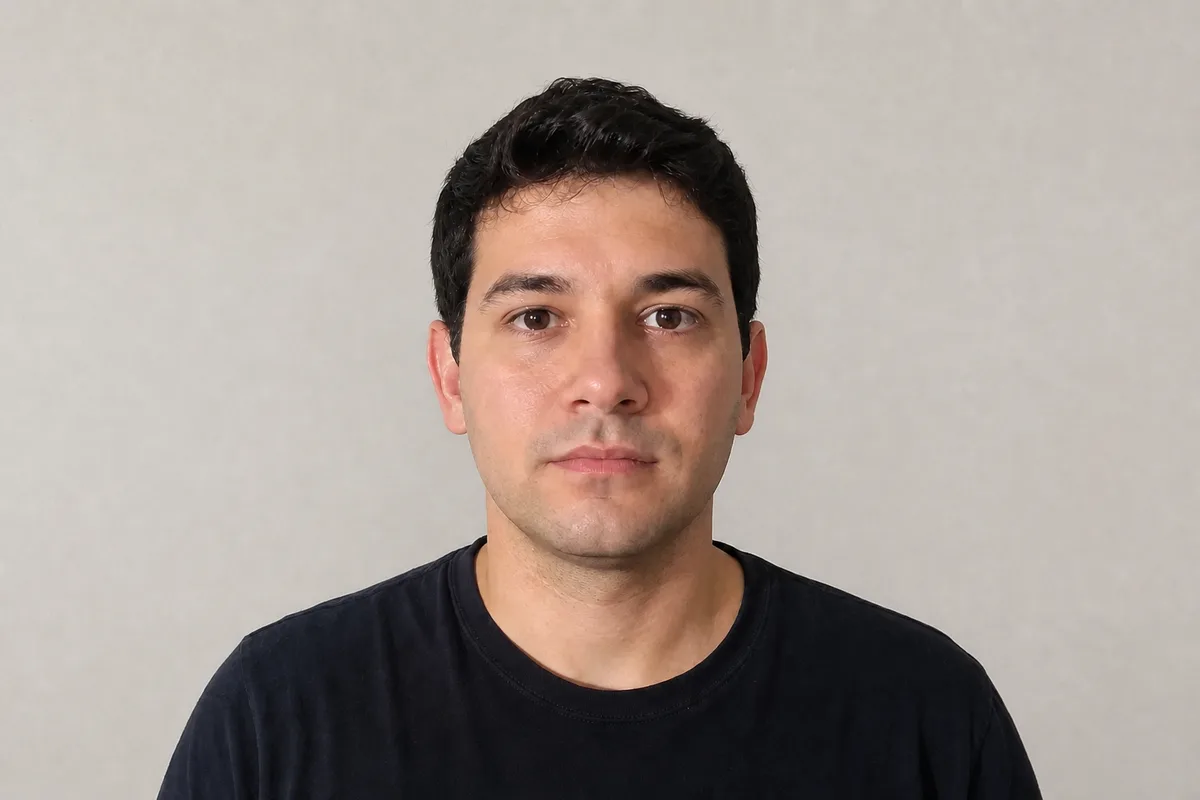
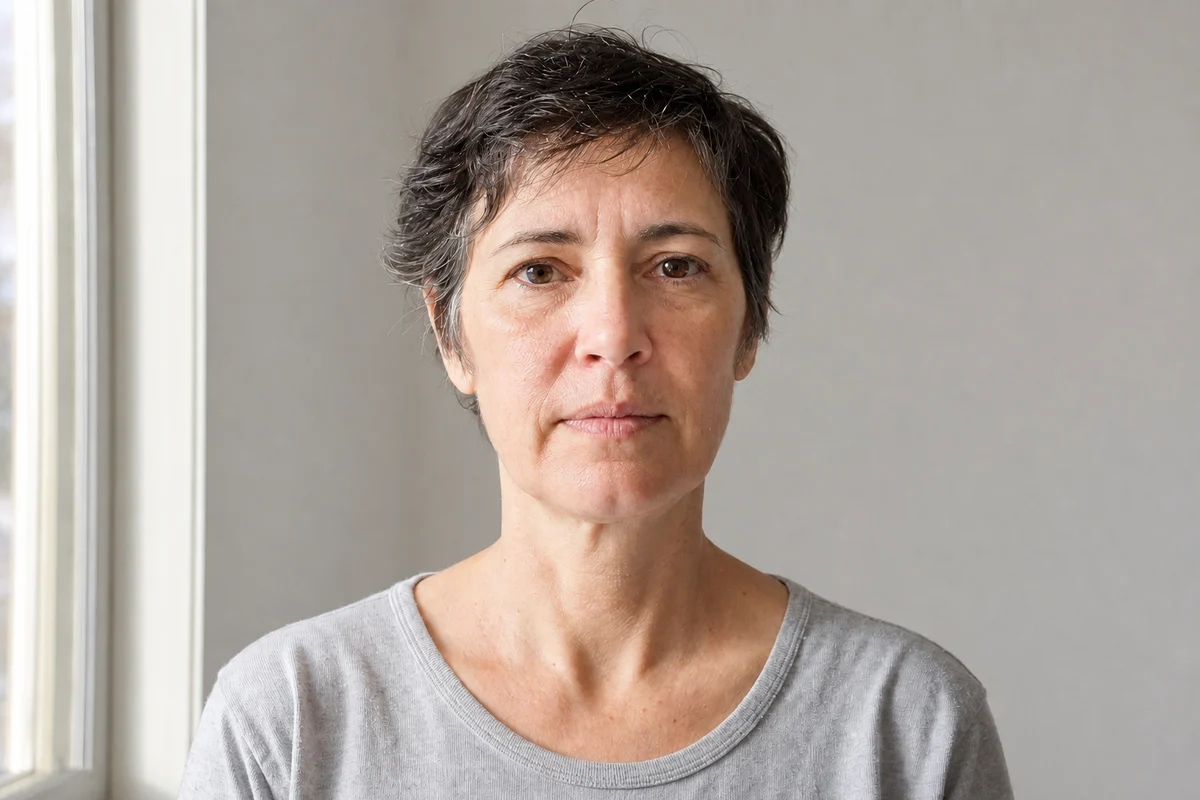
ID-style portrait with a shadow on the wall with reduced shadows — illustration
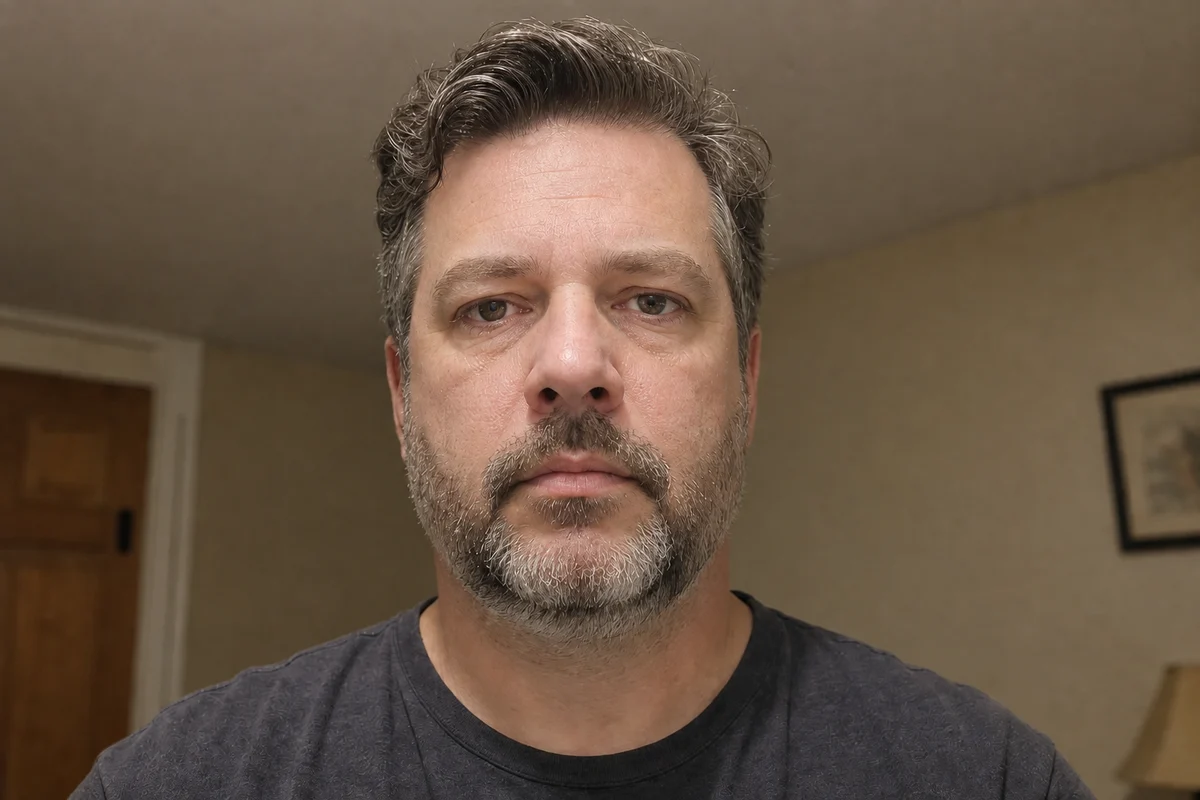
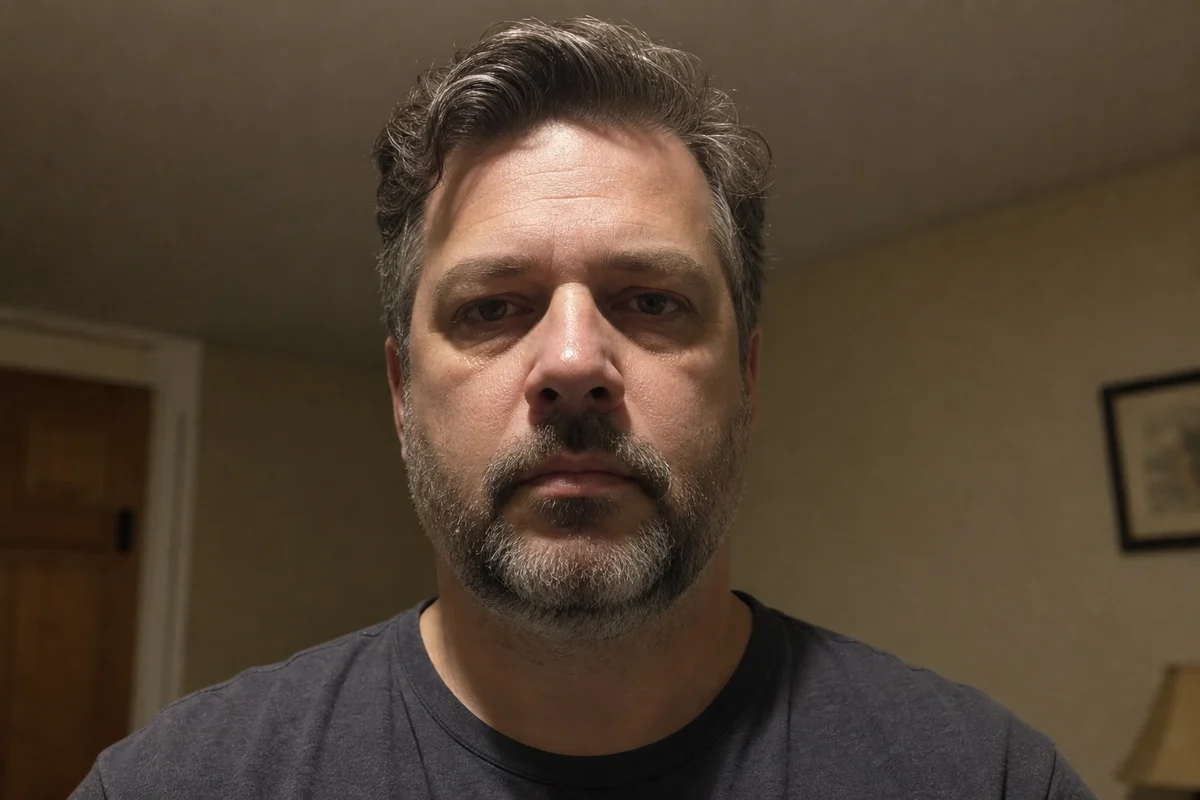
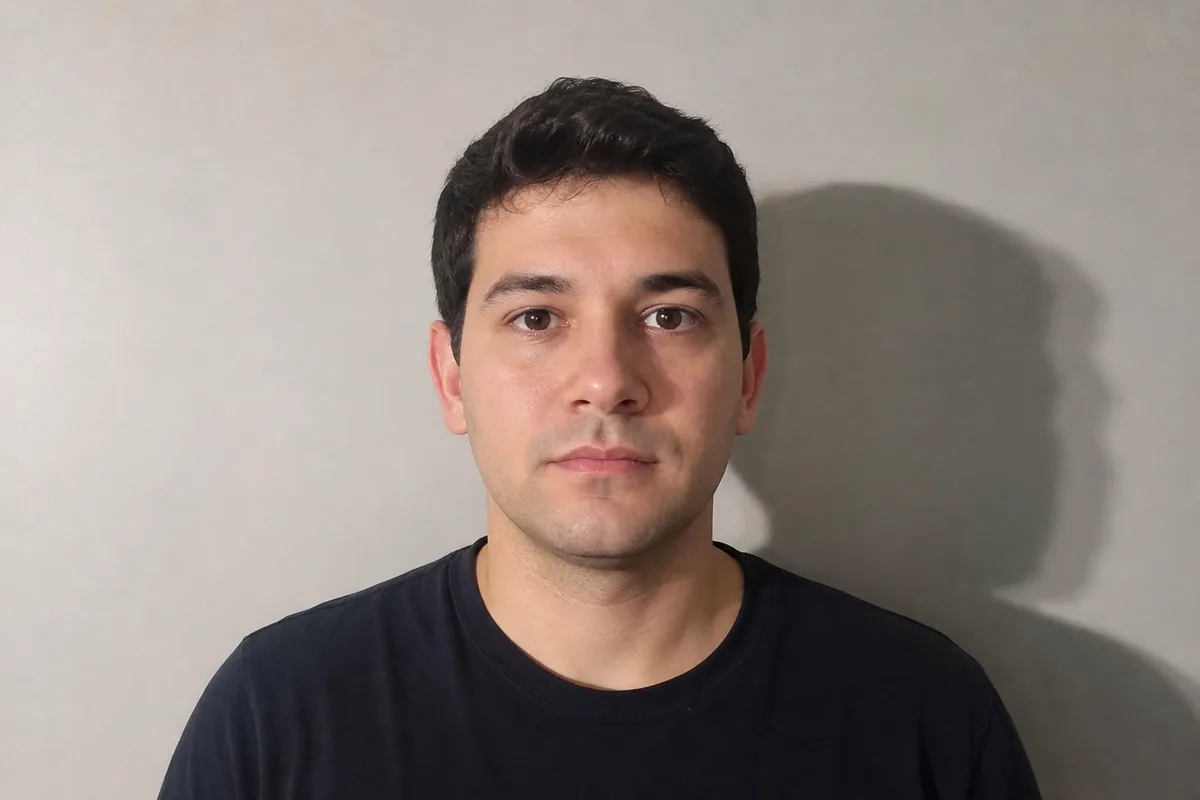
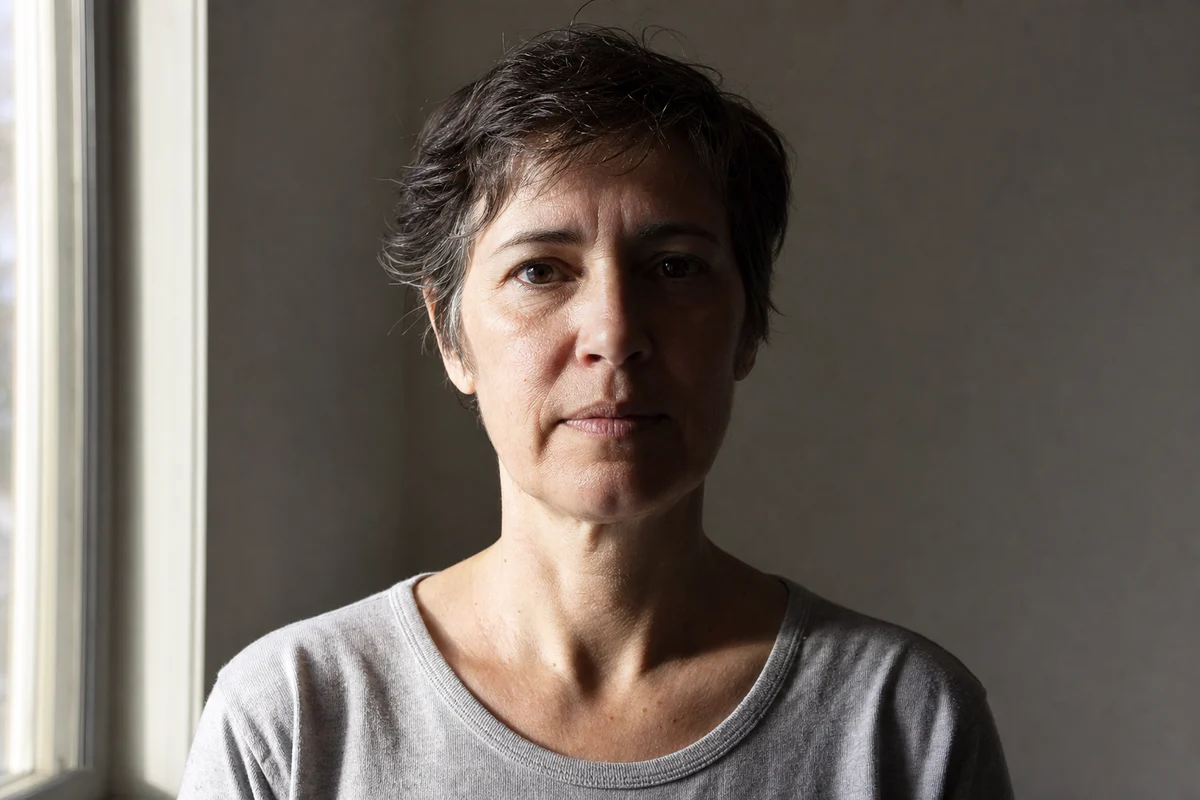
ID-style portrait with a shadow on the wall before shadow correction
Original
Processed

AI-generated illustration, not a measured result. Compare your own image after processing.

Upload your photo

No image handy? Try a sample:

Costs 5 credits · No card needed to start

JPG / PNG · Up to 10 MB
Compare before and after
Sign-in and credits required

What an ID photo shadow remover can change

An ID photo shadow remover addresses uneven light on the face and the shadow cast onto the wall behind it. This page uses Portrait mode, which instructs the AI to preserve the person’s features while adjusting illumination. That instruction is not a biometric guarantee. A generated result can change texture or facial details, so compare it carefully. The tool is a photo editor, not a passport-photo validator or a promise of application acceptance.

01

Face shadows and backdrop shadows

Side lighting may darken one cheek, while a person standing close to a wall casts a head-shaped outline behind them. These are different areas to inspect after using the ID photo shadow remover. Check that the face still has natural shape and that the backdrop does not develop patches or an unnatural halo.
02

Editing and acceptance are separate

A brighter portrait may look better while still being unsuitable for its intended use. Different recipients impose different rules on editing, pose, background and image dimensions. If the recipient requires an unedited original, take a new photograph instead. Do not assume that removing a visible shadow makes the image acceptable.

How to reduce shadows in an ID-style portrait

Before uploading, decide where the photo will be used. For a personal profile or a non-official badge, check the recipient’s instructions. For a passport or visa application, read the current official requirements first. JPG and PNG up to 10 MB are recommended. The displayed credit cost depends on the model and output settings you select.

1

Choose a clear original portrait

Use a focused camera image with the complete head and shoulders visible. Avoid a screenshot that has already been compressed or cropped through the hair. Keep the original file unchanged. A very dark cheek or a large glare patch may not contain enough detail for a faithful correction.

2

Review the cost and process

Portrait mode is already selected. Sign in, check the credit cost and run one correction. If you try another setting, begin again with the original rather than repeatedly processing the edited image. The ID photo shadow remover does not add passport dimensions, verify head size or produce a certified photo.

3

Compare the face before saving

Inspect the eyes, nose, jawline, hairline and skin marks in both versions. Check the wall as well as the face, and download the result only if it remains suitable for your use. Save it under a new filename so it cannot be confused with the unedited original.

ID portrait shadows to inspect in the comparison

AI-generated illustration, not a measured result. Compare your own image after processing. The displayed portrait is an illustration of face and backdrop lighting, not evidence that an edited image will pass an official check. Use the comparison to identify where the lighting differs. Your actual result must be reviewed independently, including areas that were already bright before processing.

ID-style portrait with a shadow on the wall with reduced shadows — illustration
ID-style portrait with a shadow on the wall before shadow correction
Original
Processed

A head-shaped shadow on the wall

Standing close to the backdrop can leave a strong silhouette beside the head. Inspect the border around the hair and ears after correction. The background should not acquire a halo, and strands of hair should not disappear. Stepping farther from the wall is often the simplest way to avoid this shadow when retaking the photo.

Uneven lighting across the face — Processed
Uneven lighting across the face — Original
Original
Processed

Uneven lighting across the face

One cheek may be much darker than the other when light comes from a single side. The ID photo shadow remover aims to reduce that imbalance, but a brighter side can also reveal changes in texture or features. Compare both halves of the face rather than focusing only on the original dark region.

Shadows under the chin — Processed
Shadows under the chin — Original
Original
Processed

Shadows under the chin

A hard shadow below the jaw can merge the neck, collar and clothing. Inspect these boundaries in the result. Some gentle shading communicates natural three-dimensional shape; the goal is not to flatten the face into uniform brightness. If the result looks unnatural, use the original or retake the portrait.

Passport photo rules come before editing

An ID photo shadow remover cannot decide whether an authority will accept an edited image. For example, the U.S. Department of State requires an original, unedited passport photo without filters or digital changes. For that application, retake a shadowed photo rather than submit an AI-corrected version. Read the current U.S. passport photo requirements and the rules for your own destination or issuing authority.

01

Do not treat examples as approval

A clean-looking example is not an official acceptance certificate. This page does not check passport size, head position, expression, clothing or all background requirements. It also does not verify that every facial measurement remains unchanged. Only use an edited portrait where the recipient’s rules allow it.

02

Keep the original available

Keep the camera original separately from any edited copy. If a photo is requested as an unaltered record, use that original or arrange a new photograph. Never describe an AI-edited result as unedited simply because the lighting change looks subtle.

Retaking a portrait and avoiding new shadows

Good capture conditions often solve the problem before editing. Use soft, even light, face the camera and keep enough distance from the backdrop to reduce the outline of the head. Avoid standing directly beneath a strong ceiling light. Check the face and wall on the camera screen before finishing the session. A new photograph also avoids uncertainty about changes introduced by generative processing.

01

Know the output limits

The ID photo shadow remover produces an edited image. It does not provide a print sheet, country-specific crop, background-color certification or biometric compliance report. Higher output resolution means more pixels, not a guarantee of preserved facial geometry or acceptance by a receiving authority.

02

Use the appropriate tool

Choose the document shadow remover for a photographed paper form or a scanned page. Choose portrait correction for a person’s photograph. Removing a background is a separate operation from correcting its shadow. If several edits are needed, review the outcome after every step rather than relying on the final thumbnail.

FAQ

Do not use this edited output for a U.S. passport application. The U.S. Department of State requires the original, unedited photo without filters or digital changes. Retake a photo with shadows under even lighting and check the current official requirements before submitting.


Exact preservation is not guaranteed. Portrait mode asks the AI to preserve identity and features, but generative editing can change small details. Compare the original and result carefully. This page does not certify biometric measurements or official document-photo compliance.


No. This page corrects lighting and outputs an image. It does not crop to a country-specific passport size, set head dimensions, create a print sheet or check all application requirements. Use the appropriate official instructions for those steps.


The preset processes the portrait as a whole and does not offer a brush to restrict correction to the wall. Check the face as well as the background after processing. If you need a strictly local edit, use an editor with explicit selection controls or retake the photo.


Processing your own portrait requires sign-in and available credits. The selected model and output settings determine the cost displayed before processing. See the pricing page for current options. There is no unlimited free processing promise.


No. The comparison is an illustration of lighting correction and does not demonstrate official acceptance. Your recipient’s current rules govern whether editing is allowed. For applications requiring an unedited photo, use a fresh photograph instead of an AI-corrected file.


Passport & ID Photo Shadow Remover — Portrait Lighting Fix