AI Photo Shadow Remover

Remove Shadows from Figurines

Remove shadows from figurines, painted miniatures and model photos with Product mode. Upload your photo, inspect the paintwork and download a separate copy. Sign-in and credits are required.

Upload Image to Remove Shadows

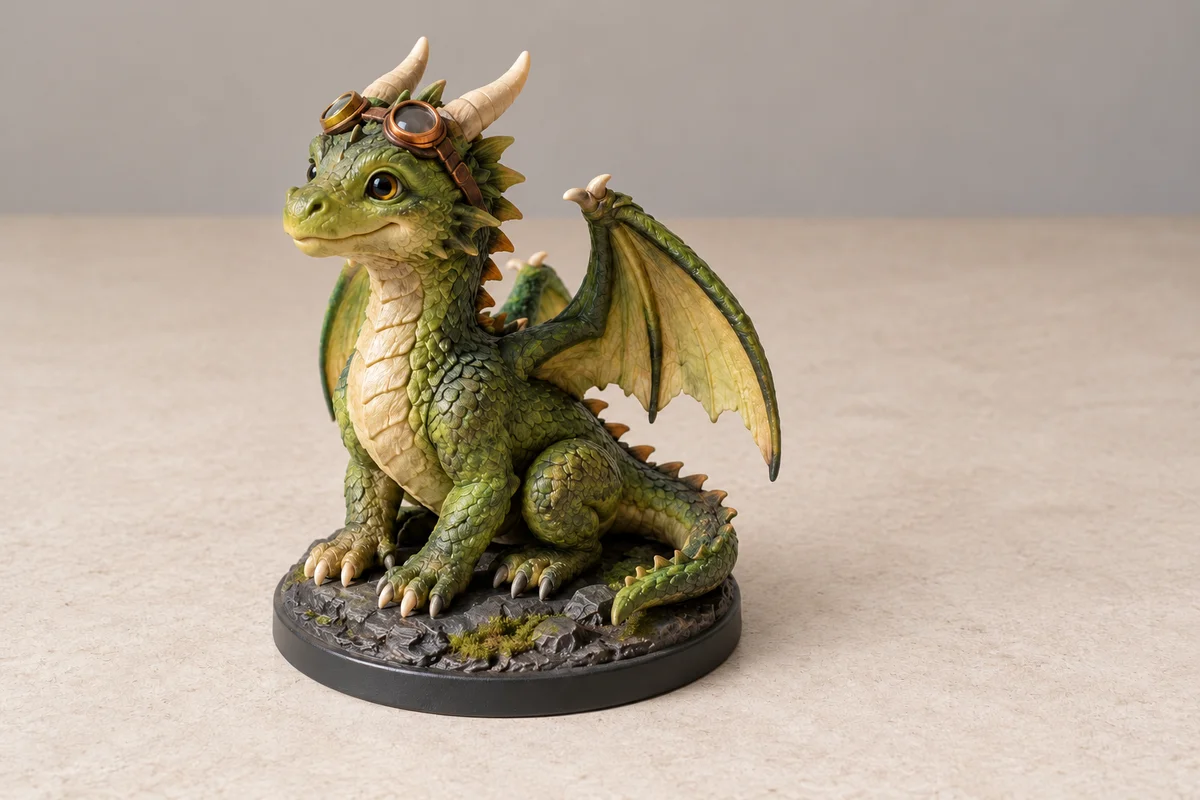
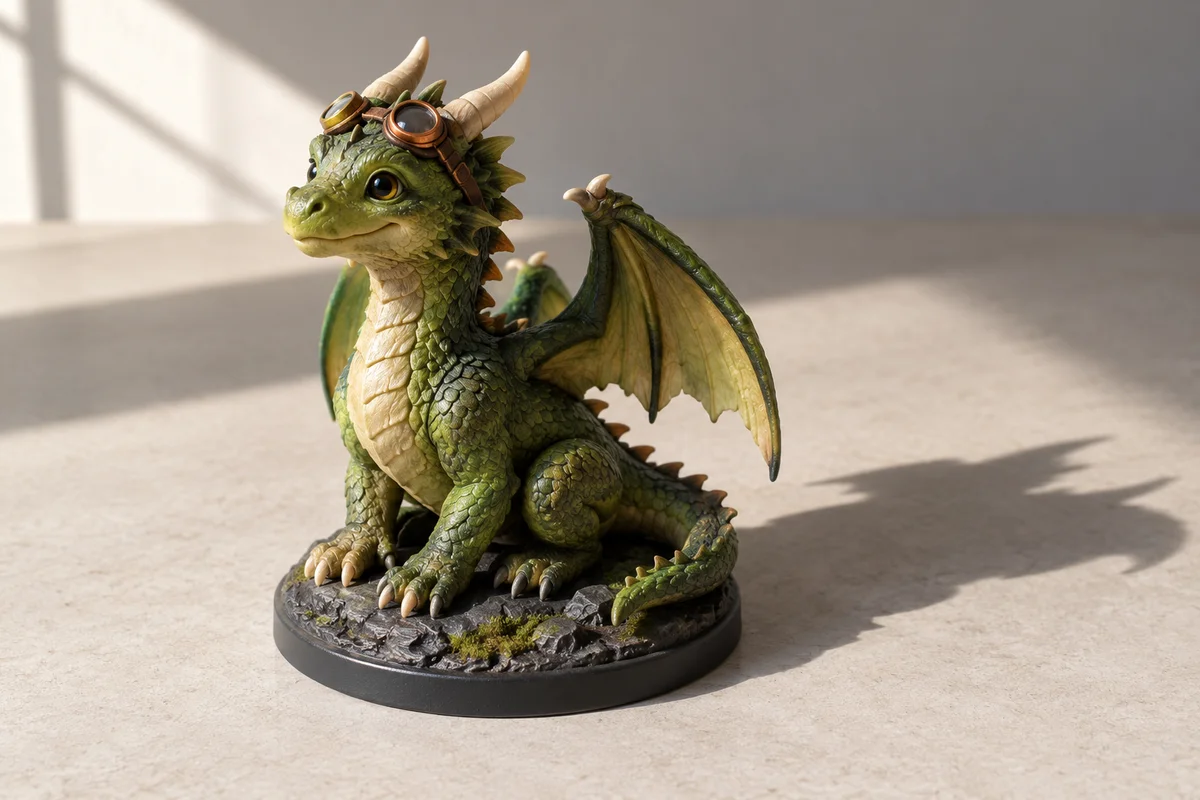
Painted dragon figurine on a display base with reduced shadows — illustration
Painted dragon figurine on a display base before shadow correction
Original
Processed

AI-generated illustration, not a measured result. Compare your own image after processing.

Upload your photo

No image handy? Try a sample:

Costs 5 credits · No card needed to start

JPG / PNG · Up to 10 MB
Compare before and after
Sign-in and credits required

Figurine shadow removal without losing painted detail

Use this tool to remove shadows from figurines when a desk lamp or window leaves a distracting silhouette behind the model. Product mode asks the AI to correct lighting while preserving the object’s shape, material and surface details. The important distinction is between light cast onto the scene and shading painted onto the miniature. A dark wash in a sculpted recess may be part of the artist’s work, not something to erase. Always keep the original photograph for comparison.

01

Cast shadows versus painted shading

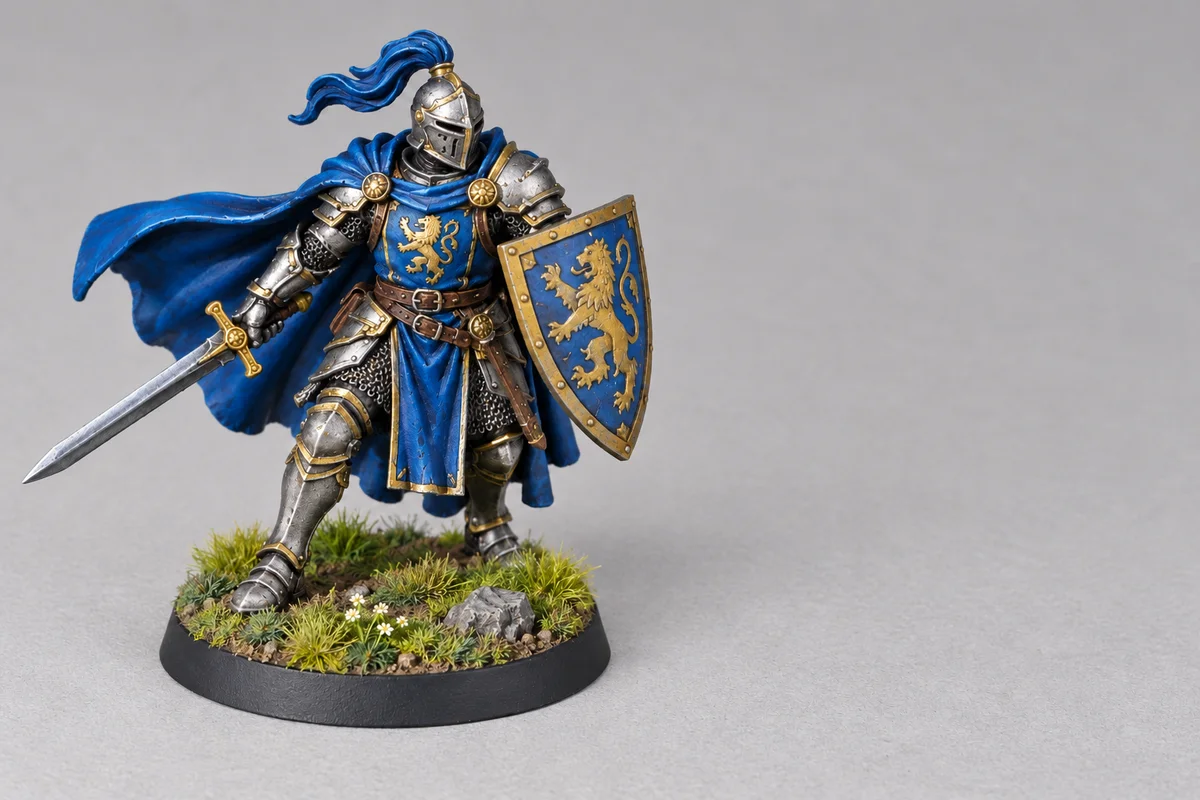
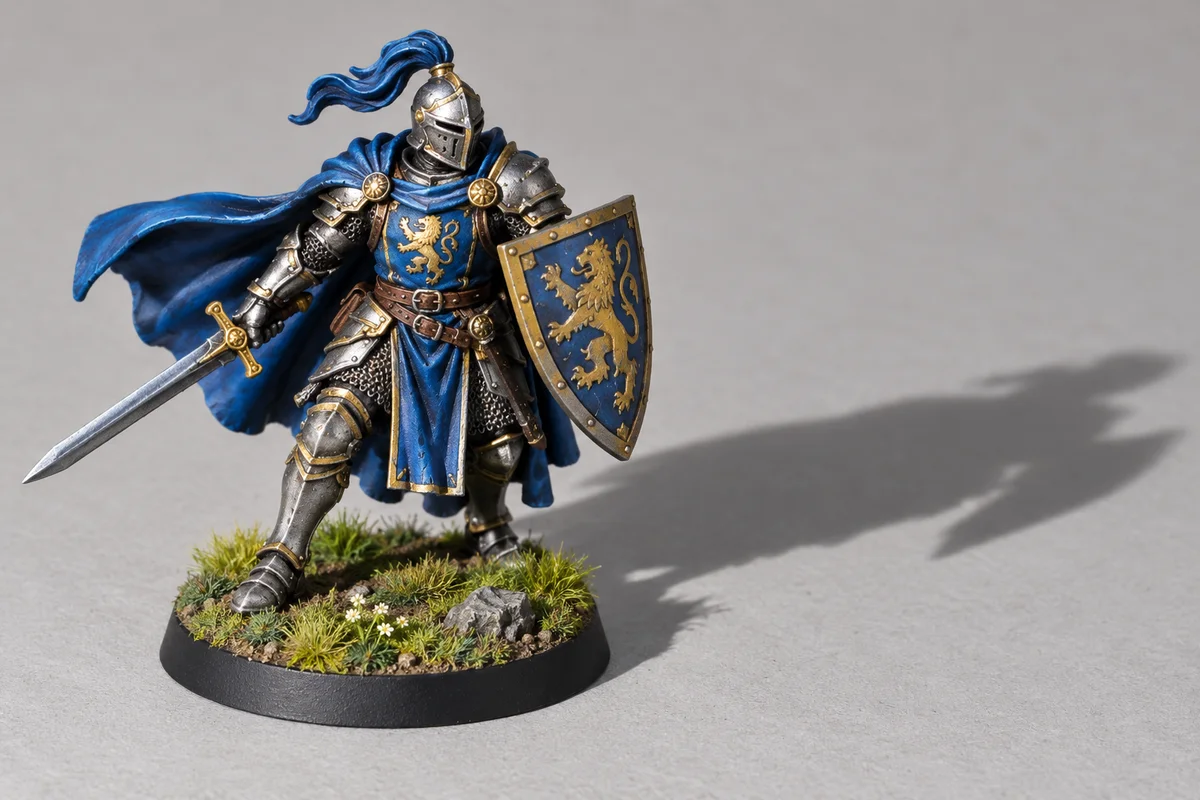
A long outline on the tabletop or wall is usually cast by the figure under directional light. Dark panel lines, painted gradients, weathering and black trim belong to the model. When you remove shadows from figurines, inspect those areas to ensure the correction has not treated deliberate paintwork as poor illumination.
02

Preserve the object’s shape

Small shadows around the feet and base help show where the object touches the surface. Removing every dark pixel can make a model look flat or suspended. The aim is to reduce distracting lighting, not erase sculpted depth. Generative processing can alter details, so a clear source photograph is essential.

How to remove shadows from figurines online

Start with one sharply focused photo of the complete model. Leave space around thin parts such as horns, wings, antennae and weapons rather than cropping through them. JPG and PNG up to 10 MB are recommended. Model and output settings determine the credit cost shown by the tool; increasing the output size does not guarantee more faithful detail.

1

Upload the original model photo

Choose the camera file instead of a screenshot of a marketplace listing. Keep the display base and surrounding surface visible so you can judge the cast shadow. If tiny sculpted features are already blurred, retake the picture before processing; artificial enlargement does not recover the actual paint job.

2

Run the preset Product mode

Product mode is selected on this page. Sign in, review the displayed credit cost and start one correction. To compare different settings, go back to the original image rather than repeatedly editing a generated result. Each pass can introduce changes that are difficult to spot in a small preview.

3

Check details and download

Compare the original and result, then inspect the downloaded file at full size. Look closely at painted eyes, edges, joints, decals and the rim of the base. Save the edited image separately so the original remains available if the lighter version changes the model’s appearance.

Examples for collectibles, miniatures and scale models

AI-generated illustration, not a measured result. Compare your own image after processing. The dragon comparison is an AI-generated illustration of shadow cleanup, not a benchmark or a measured result from the selected model. Use it to understand the kind of distracting tabletop shadow this workflow targets. Your own model’s paint, material, lighting and fine details determine how useful the result is.

Painted dragon figurine on a display base with reduced shadows — illustration
Painted dragon figurine on a display base before shadow correction
Original
Processed

Painted collectible figurines

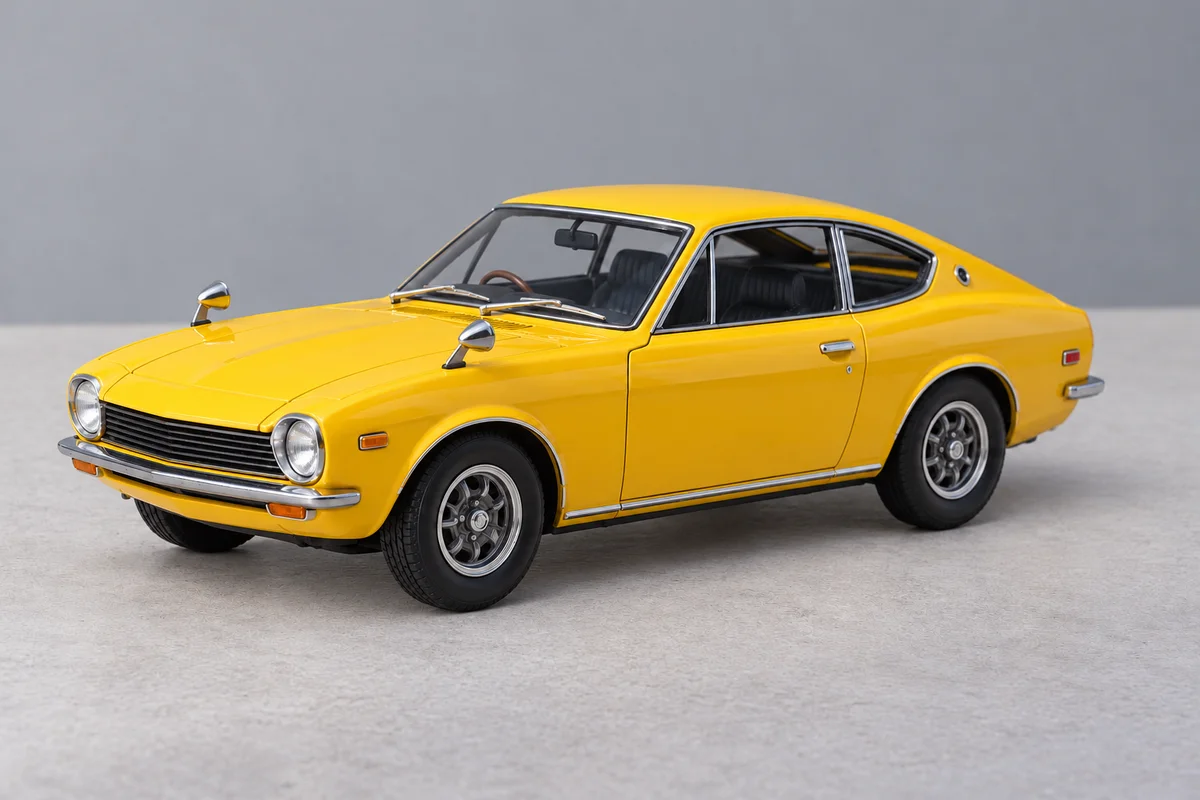
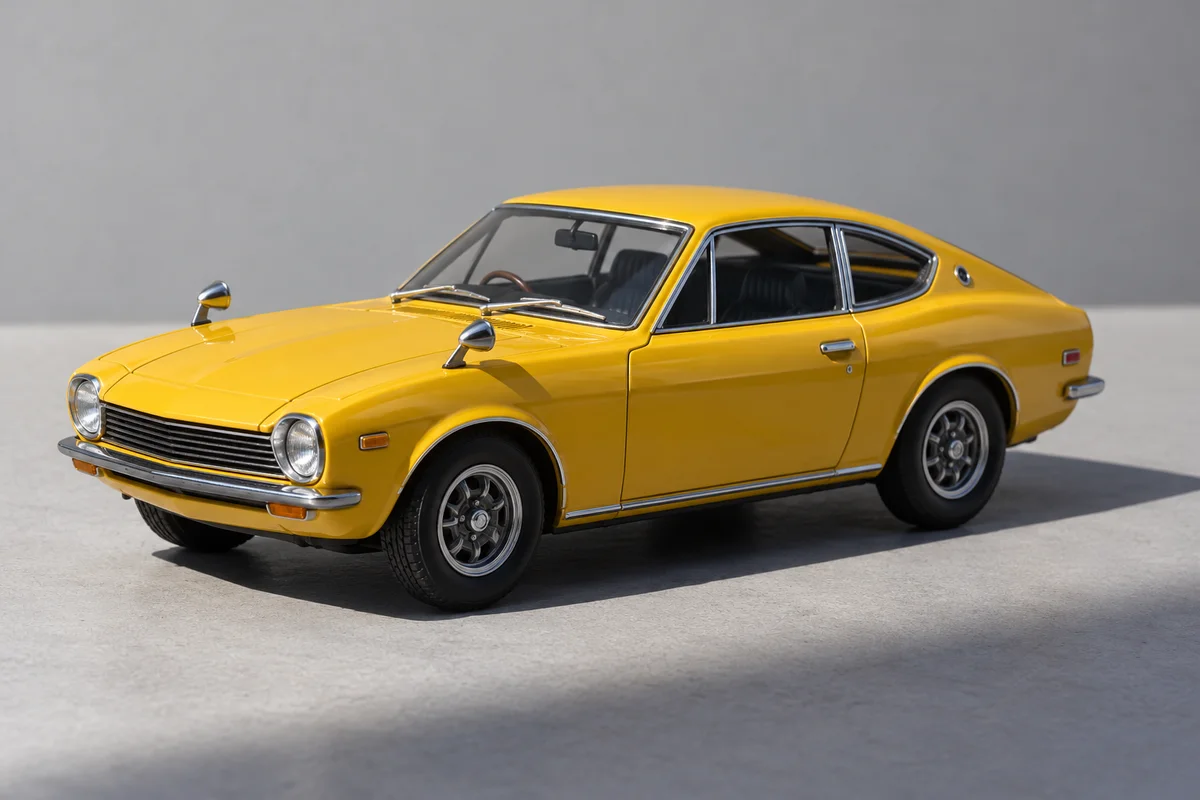
The sample contrasts a long tabletop silhouette with more even illumination around a resin dragon. When you remove shadows from figurines, compare the green paint, copper goggles, horns and rocky base, not just the empty tabletop. Those small features are the subject of the photograph and should remain recognizable.

Tabletop miniatures — Processed
Tabletop miniatures — Original
Original
Processed

Tabletop miniatures

Tiny eyes, painted highlights and dark washes can occupy only a few pixels. Photograph the miniature close enough to resolve them, but keep the camera steady and all important parts in focus. Review the corrected image against the actual miniature under neutral light before using it in a painting portfolio.

Scale-model kits — Processed
Scale-model kits — Original
Original
Processed

Scale-model kits

Aircraft, robots and vehicle kits have panel lines, small decals, transparent parts and narrow attachments. Treat a changed serial marking or softened seam as a reason to reject a result. Shadow cleanup is different from repairing the model, changing its livery or removing evidence of wear.

Check paintwork before sharing or selling

A clean background is not enough to make an accurate collectible photo. Compare both shaded and originally bright regions after processing. When you remove shadows from figurines for a sale listing, preserve visible wear, chips, repairs and paint defects. Keep an unedited photo available so buyers can judge the real item. Do not use brighter lighting to conceal its condition.

01

Inspect colors and edges

Look for warmer or cooler paint, missing decals, merged fingers, reshaped horns and softened engravings. A high-resolution download describes the dimensions of the output, not the truthfulness of every feature. If a detail matters to the model’s value or identity, compare it directly with the original.

02

Separate lighting from background removal

This page keeps the scene and corrects its illumination. It does not produce a transparent cutout. If you need an isolated model for a layout, use the background remover as a separate step and inspect thin parts again. Each tool addresses a different problem and may use additional credits.

When a new model photograph is the better option

You can remove shadows from figurines more reliably when the shadowed surface is still visible in the source. If the model is almost black, motion-blurred or clipped by glare, essential information may be missing. The tool cannot guarantee an exact reconstruction of paint or geometry. It also does not remove physical damage or validate a listing against the real collectible.

01

Improve the light before editing

Move the lamp farther to the side or diffuse it, and use a white card opposite the light to soften the dark side. Keep the backdrop far enough behind the model to reduce the prominence of its silhouette. Take a fresh photograph if this gives a clearer account of the object.

02

Keep comparisons consistent

For a collection or painting portfolio, use consistent framing, background and light across photographs. Editing one figure very brightly while leaving another dark can distort how their paintwork compares. Use the tool selectively and keep both the source and final image for later review.

FAQ

Yes, you can try the Product mode, but inspect the paintwork carefully. The goal is to reduce lighting shadows, not erase painted dark washes, panel lines or weathering. If those details change, use the original or retake the photograph with more even light.


Exact preservation is not guaranteed. Generative image processing can change small details even when instructed to preserve them. Compare decals, painted eyes, fingers and narrow attachments at full size. Reject a result that changes an important feature rather than judging only the background.


No. This page is for correcting lighting while keeping the surrounding scene. Use the separate background remover if you need a transparent cutout. Thin wings, antennae and gaps require another inspection after cutting out the model.


Processing your own photo requires sign-in and available credits. The tool displays the cost for your selected model and output settings before processing. Current credit options are listed on the pricing page; this page does not provide unlimited free processing.


You can upload those photographs, but reflections are not the same as shadows. A bright glare patch may hide paint or surface detail that cannot be recovered faithfully. Adjust the lighting and take another photo if the original has large blown-out areas.


The displayed dragon comparison is an AI-generated illustration, not a measured output from the selected processing model. It explains the intended lighting correction. Upload your own image and inspect the actual result before deciding whether it is suitable.


Remove Shadows from Figurines — Model Photo Cleanup